Capture
Save pages, selections, links, images, and files without breaking focus.
Capd offers several ways to save something. Every method uses the same local library, duplicate detection, confirmation HUD, and background enrichment.
Use the capture hotkey
Press ⌃⌥C anywhere. Capd inspects the frontmost app and saves the most useful content it can read.
| Frontmost app | What the hotkey can save | Page content for search |
|---|---|---|
| Safari, Chrome, Arc, Helium | Current URL, title, and selected text | Read from the rendered tab |
| Firefox, Zen, LibreWolf, Waterfox, Search | Current URL, title, and selected text | Fetched from the website |
| Other apps | Selected text or clipboard content | Not applicable |
For Safari, Chrome, Arc, and Helium, reading the rendered tab means content already visible to you—including many signed-in or paywalled pages—can be indexed without Capd making another page request.
Firefox, Zen, LibreWolf, Waterfox, and Search expose their current tab through Accessibility rather than Automation. Capd can capture the address and title, then fetch readable page content separately when page fetching is enabled. Fetched content does not use the browser’s login or cookies, so signed-in pages may not be enriched.
Drag to capture
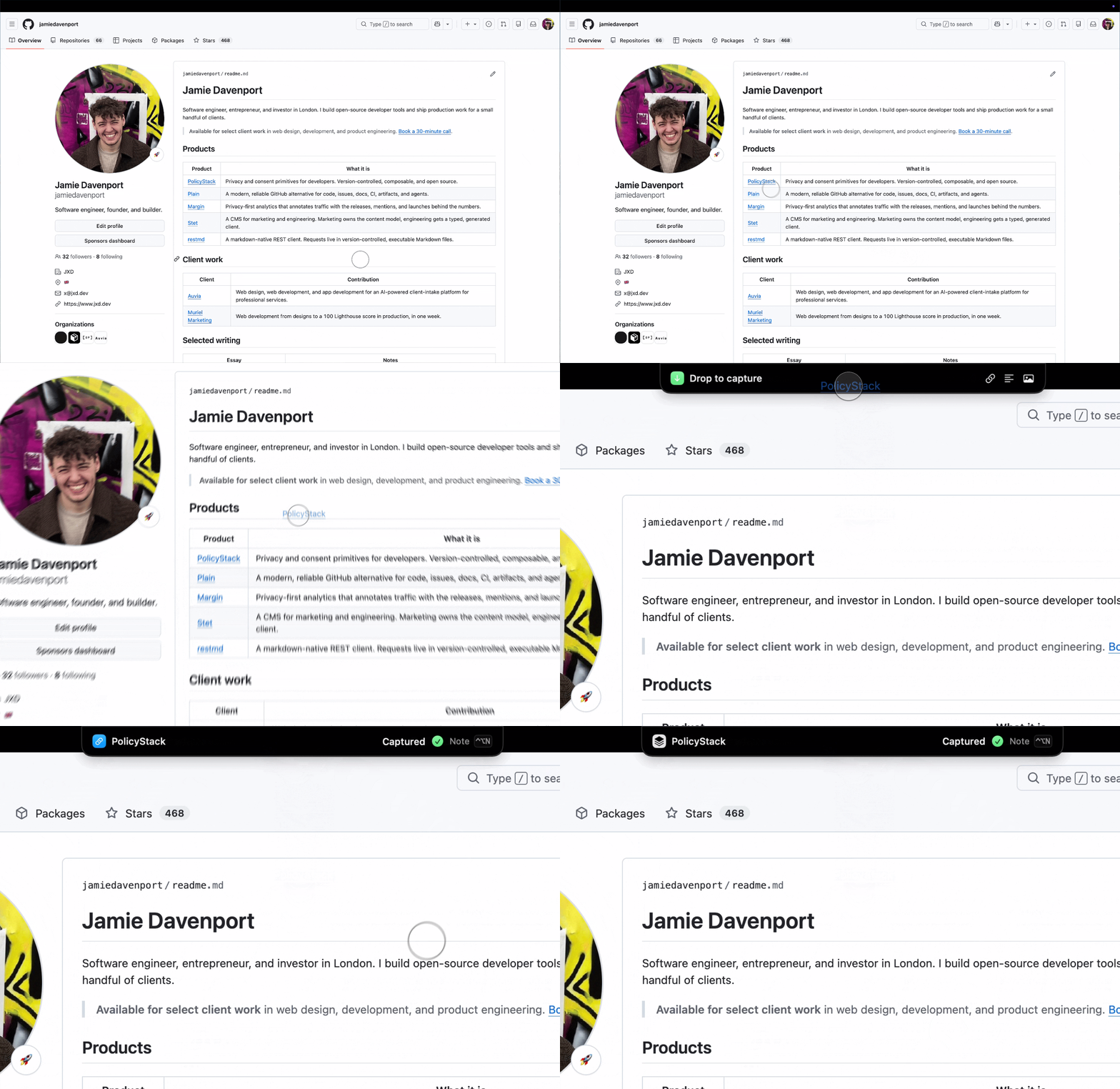
Drag a link, text selection, image, or file toward the MacBook notch. The HUD turns into a Drop to capture target. Macs without a notch can accept the same items on Capd’s menu-bar icon.
Image files become searchable image captures. Other local files are saved as searchable file paths; Capd does not copy their contents.
Use the share sheet
Share a web page from Safari, Chrome, Firefox, or another app and choose Capd. The shared URL and title are saved immediately, and readable page content is queued for background extraction.
Capture from the terminal
The bundled CLI accepts URLs, text, and standard input:
capd add https://example.com/article
capd add "Remember this" --note "Useful for the project"
pbpaste | capd add -
See the CLI guide for bulk capture and scripting options.
Add a note
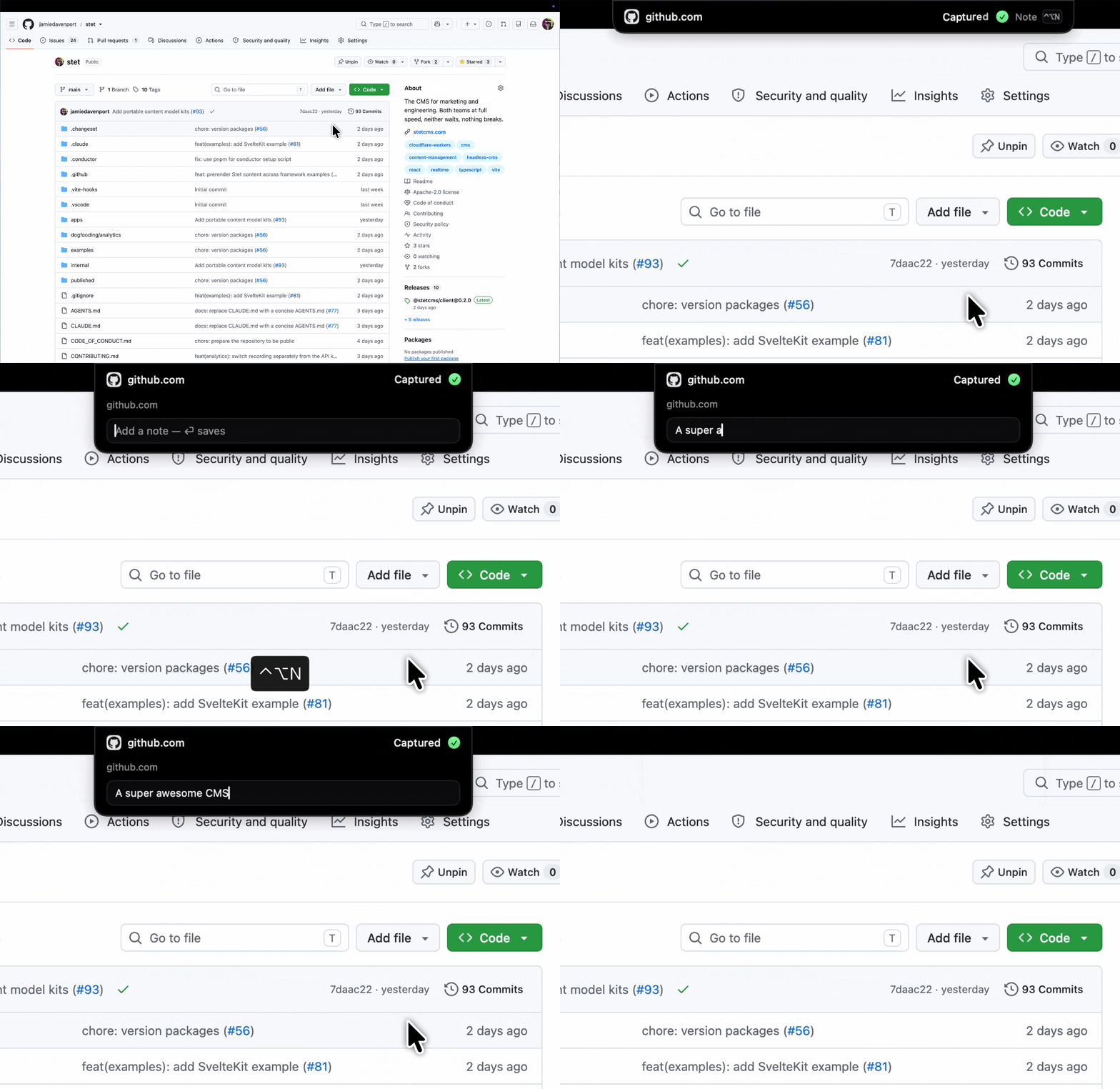
After a capture, press ⌃⌥N or click the confirmation HUD. Press Return to save the note or Escape to close it. Opening an existing note lets you edit it; saving an empty field removes it.
Selection and clipboard fallback
Capd first reads selected text through Accessibility. When an app does not expose its selection, Capd temporarily copies it, captures the result, and restores the clipboard exactly as it was.
The fallback is skipped when restoring the clipboard would be unsafe, such as during a file drag or with unusually large clipboard data. The HUD explains what happened.
When secure input is active—for example, inside a password field—Capd refuses to capture anything. Nothing is read or stored.
What Capd stores
- Links include the URL, title, optional selection, and readable page text when extraction succeeds.
- Text captures contain the selected, copied, dropped, or entered text.
- Images are stored locally, with on-device OCR text added to search.
Duplicates and background enrichment
Capd normalizes URLs by removing fragments and common tracking parameters such
as utm_*, fbclid, and gclid. Capturing the same item again updates its
seen count and timestamp instead of creating a duplicate.
The background helper extracts readable page text and runs image OCR. A failed
page fetch never discards the capture: its URL, title, selection, and note stay
searchable. Re-capture the page or run capd refetch to try again.